
A HubSpot chatbot integration can mean two different things: a bot that runs inside HubSpot, or a separate website chatbot that sends captured leads into HubSpot contacts. Choose the first when your team wants to manage chat in HubSpot. Choose the second when your store already handles customer conversations in another inbox but wants sales to receive the lead and its intent. The distinction decides where your team reads the conversation, where the visitor sees the widget and what information crosses systems.
This guide uses ConvertPilot as the external-chat example. It captures a lead in a website conversation, creates or updates a HubSpot contact, and writes labels and AI tags as contact properties. Your team still reads and hands off the conversation in ConvertPilot. Before connecting anything, decide who owns the reply and what a useful contact record should tell them.
What does HubSpot chatbot integration mean?
HubSpot has its own chatflows. Its rule-based chatbot guide describes a website widget that can qualify visitors, ask questions and route them to a teammate in a HubSpot inbox or help desk. HubSpot also documents a live-chat path. In that setup, HubSpot hosts the chat experience. You configure the chatflow, its availability and its target pages there.
An integration with an external chatbot is a different arrangement. The visitor talks to that chatbot, and selected lead data goes to HubSpot. There is no reason to assume the entire conversation, a ticket, a deal or a native HubSpot chatflow appears automatically. Read the integration description for the exact data it sends. For ConvertPilot, the HubSpot integration page lists contacts, labels and conversation intent.
Which setup should you choose?
Start with the place where your team already works. If the support team opens HubSpot all day and wants the website chat there, test HubSpot chatflows first. If store questions already arrive through a separate chat agent and shared inbox, sending captured contacts into HubSpot may be enough. Avoid running two visible widgets on the same page until you have decided which one a customer should use.
| Decision | HubSpot chatflow | External chatbot with CRM sync |
|---|---|---|
| Where a visitor chats | HubSpot website widget | The external chatbot widget |
| Where your team replies | HubSpot inbox or help desk | The external chatbot inbox |
| What to verify in HubSpot | The chatflow, contact and assigned conversation | The created or updated contact and its properties |
| Best fit to test first | Teams already working support in HubSpot | Teams keeping support elsewhere and sales contacts in HubSpot |
A Shopify store may have product and order questions that need the store connection as well as CRM follow-up. ConvertPilot describes its Shopify connection separately from HubSpot. Connect the store to ground replies in product and recent order information, then connect HubSpot only when you know which captured leads sales should follow up. One integration does not substitute for the other.
How do you connect ConvertPilot to HubSpot?
First make a short lead-capture policy. Decide which contact detail the visitor can give, what you will tell them about follow-up and who will review the lead. Then prepare a real but controlled test question. A visitor asking about sizing may need support; a buyer asking for a bulk quote needs a sales owner. The chat should keep the question meaningful for that person, not merely collect an address.
- Check the plan. The HubSpot integration is listed for Premium and Enterprise. Read current plans before connecting.
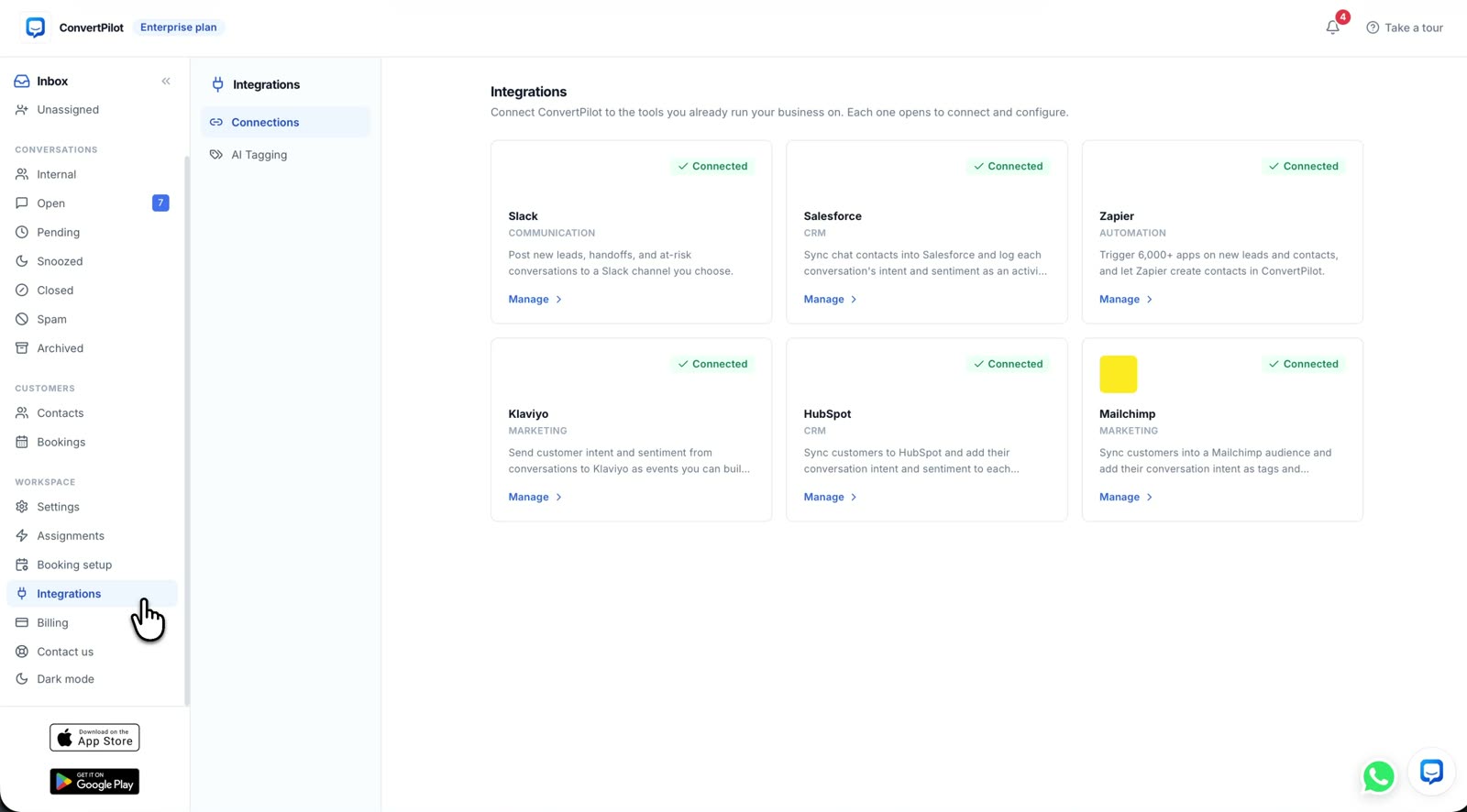
- Connect the account. In the ConvertPilot console, open Settings, then Integrations, HubSpot and Connect. Approve the app in HubSpot, using the account where your team expects to see contacts.
- Test a captured lead. Ask a realistic question through the published website widget, give a test contact detail and inspect the contact in HubSpot.
- Inspect the properties. Check the labels and conversation intent against the question you actually asked. Confirm the sales owner understands what each property means.
- Test the team path. Ask for a person, open the thread in ConvertPilot and check that a teammate can take over without the agent continuing to answer.
The connection creates or updates HubSpot contacts and sends labels and AI tags as properties, according to the product catalogue. It does not specify an exact property name for your account. Inspect the actual HubSpot record rather than building a follow-up process around a field you have not seen. The AI tagging guide explains what an intent label means and where it can become misleading.
What should you test before trusting the sync?
A successful account connection is only the first check. Test a new contact, a contact who has already enquired, a support question that should not prompt a sales pitch and a request for a person. Run each test from the customer page and inspect both inbox and CRM. Record the result in a small checklist so a teammate can repeat it after a settings change.
| Test case | Check in ConvertPilot | Check in HubSpot |
|---|---|---|
| New buyer question | Question, contact detail and useful intent in the thread | Contact appears with the expected labels and intent properties |
| Existing contact returns | New message stays readable in the inbox | Inspect the existing record for update or duplicate behaviour |
| Support-only question | Reply is grounded in a current source | Sales owner can distinguish support intent from purchase intent |
| Customer asks for a person | Agent pauses and a teammate can reply | Do not assume a ticket or transcript was created |
The existing-contact case matters because the product description promises creation and updates, but it does not describe every match or duplicate rule. Your HubSpot account can also have its own contact processes. Do not claim a duplicate-free pipeline from a single successful test. Repeat with an address your team already recognises and agree how to handle unexpected records.
A synced contact is useful only when the next person can see the real question, trust the label and know where to reply.
How should the team follow up?
Name an owner for incoming conversations and a separate owner for CRM follow-up if the teams differ. Write down which messages can be answered in chat, which need a person and which lead properties merit a sales call. If a buyer asks about a specific product, the follow-up should address that product. If the question is a complaint or a return exception, send it to support. An intent label is a prompt to read the conversation, not permission to guess what the customer wants.
ConvertPilot pauses the agent when a teammate joins the shared inbox. Its human handoff guide covers assignment and the waiting experience. Check Online hours and the away message so a lead captured outside working hours is not told someone is replying immediately. The mobile app page shows the option for inbox notifications when your team is away from a desk. Use those controls only with a person responsible for answering.
Start with one channel and one handoff route. Review a few real threads after launch: did the customer receive a sound answer, did the CRM contact contain useful context, and did the assigned person act on it? If any part fails, adjust the source material, label or ownership before connecting more channels.
What does this integration not promise?
The listed HubSpot integration is a contact and property sync. It does not state that ConvertPilot creates HubSpot tickets or deals, copies full chat transcripts into HubSpot, or runs a HubSpot chatflow. It also does not guarantee how every existing contact is matched. Keep the original conversation in the ConvertPilot inbox and verify each data field you need in your own HubSpot portal.
If your goal is to run the whole conversation inside HubSpot, use its chatflow documentation and test that route. If you want a separate agent to answer store questions while your sales team receives contact context, test the ConvertPilot connection against your actual workflow. The right integration is the one whose handoff your team can reliably complete.