

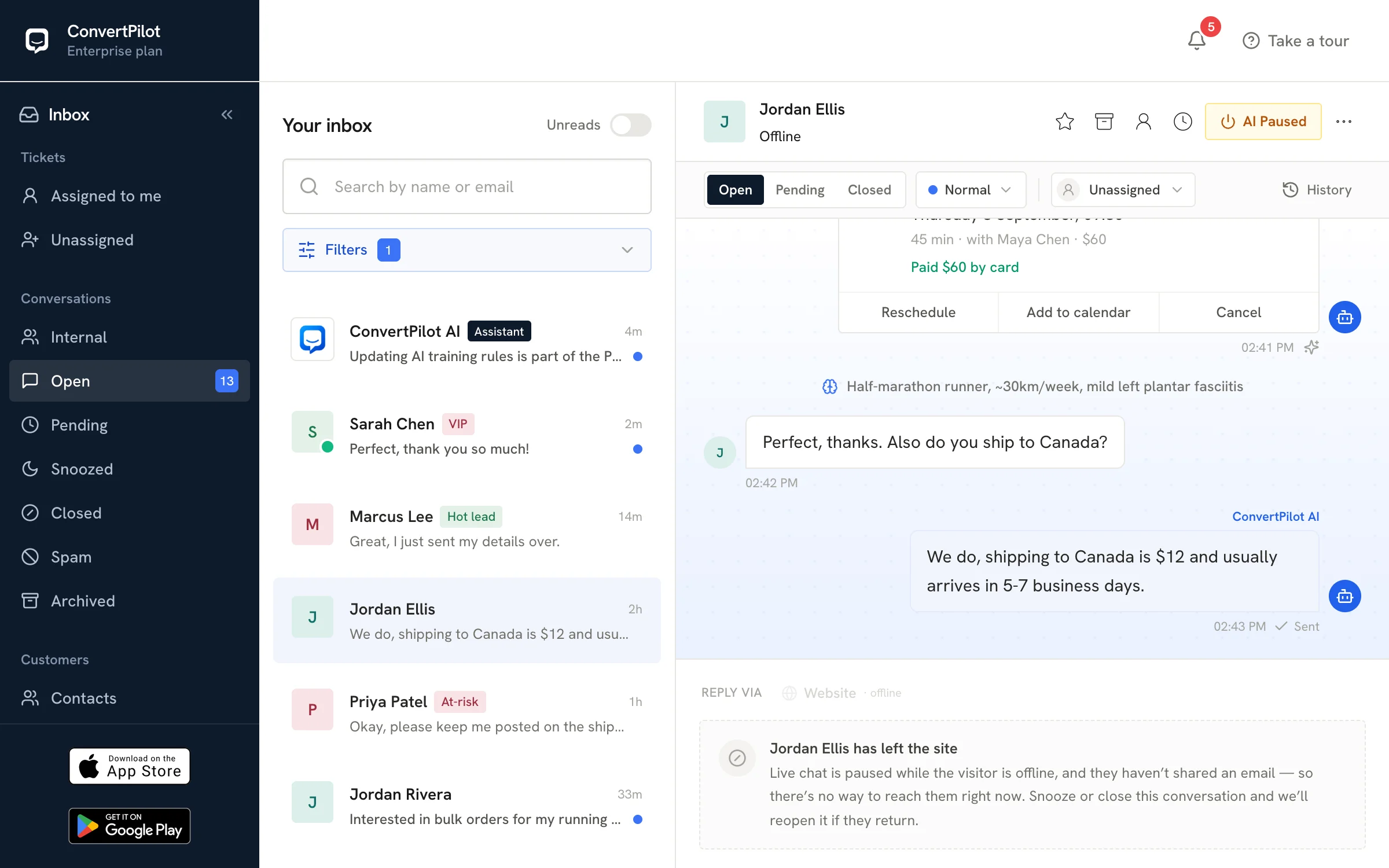









Set your AI chatbot’s tone of voice for each channel you answer on.
Write a few words for each channel on how ConvertPilot should sound there, and every AI reply on that channel follows them. Website chat can stay brief and upbeat, email can be complete and polite, and Instagram can read like a quick, friendly DM, all built on the same answers about your business.
Your brand voice, adjusted to every channel.
Customers read a website chat, an email and an Instagram DM in different ways, and the reply that suits one of them rarely suits all three. With a tone for each channel, you decide how the AI sounds in each place, and customers hear the same business wherever they write to you.
The tone is added to the AI’s instructions on every reply it writes on that channel. It starts working the moment you save it, in new conversations and in the ones already open.
What a tone can shape
- How warm a reply feels, from friendly to businesslike
- How long it runs, from a line or two to a full answer
- How formal it is, and how it greets the customer
- How it signs off
- Whether it uses emoji, and how many
Your facts, your order and privacy rules and the limits on what the AI may do stay exactly as you set them, whatever the tone says.
Tone of voice examples from our live demo.
- Website chat
Warm and upbeat. Keep replies to two or three short sentences and end with a clear next step.
 Email
Polite and complete. Greet the customer by first name and sign off with “Kind regards, the team”.
 Instagram
Casual and friendly, like a quick DM. Short lines, one emoji at most.
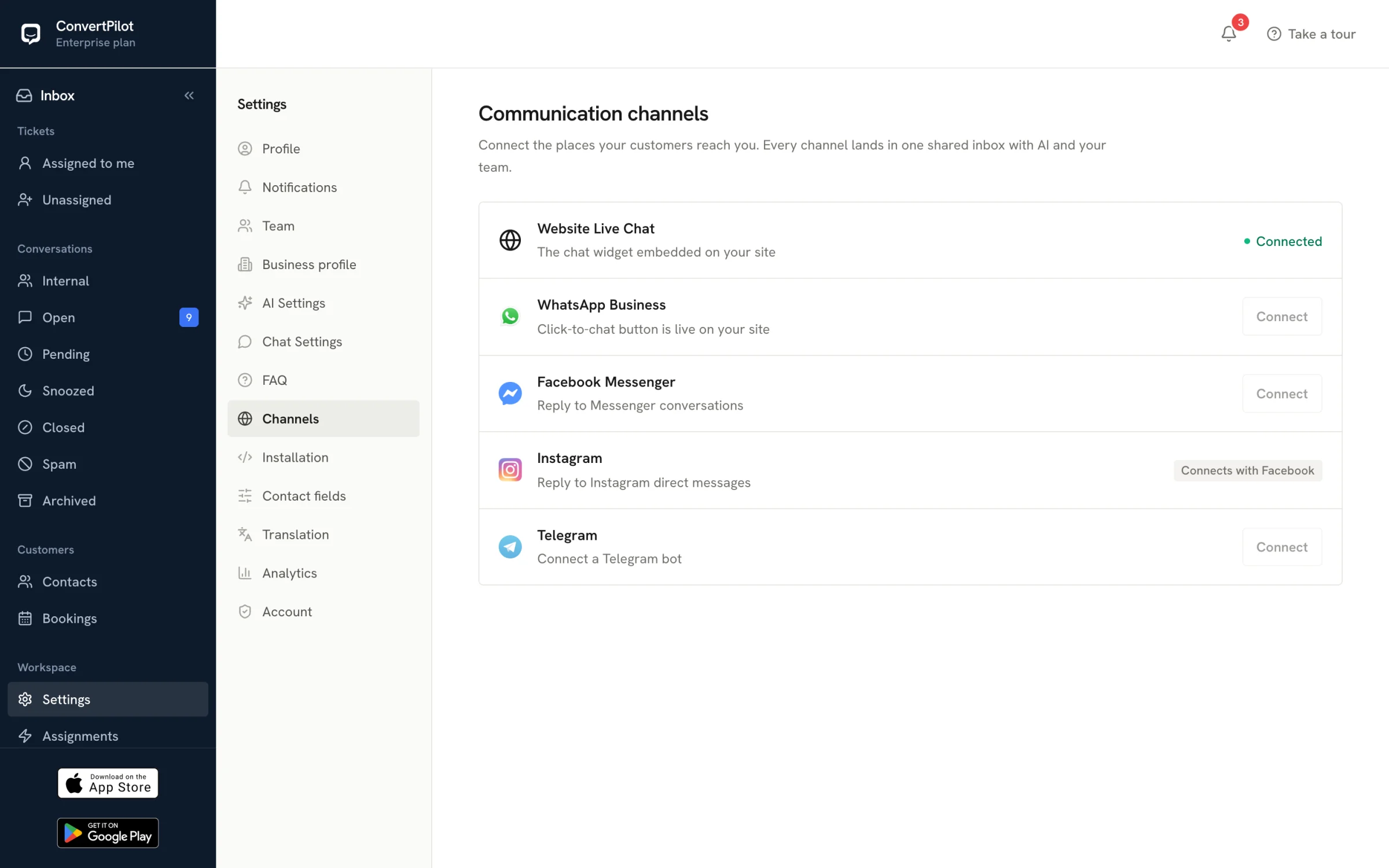
Open the live demo and go to Automations, then Assignments, to see these tones on their channel rows and try one of your own.
How to set a tone for a channel.
- 01
Open Configure tone
In the ConvertPilot console, go to Automations, open Assignments and choose Configure tone.
- 02
Pick the channel
Choose Website chat, Email, Facebook Messenger, Instagram, WhatsApp or Telegram from the list.
- 03
Write how the AI should sound
Describe the tone in up to 300 characters. A counter beside the field shows how many you have used.
- 04
Save it
The next AI reply on that channel uses the new tone. The channel’s row on Assignments shows it on one line, and you can open it again to edit or remove it at any time.
Only the workspace owner can set, edit or remove a tone.
Tips for writing a chatbot tone of voice.
Lead with the feel.
Two or three words such as “warm and upbeat” or “polite and complete” give the AI a clear direction before any detail.
Say how long replies should be.
A limit like “two or three short sentences” keeps website chat easy to read on a phone.
Name the greeting and the sign-off.
If emails should open with the customer’s first name and close with “Kind regards, the team”, write exactly that.
Give emoji a rule.
“One emoji at most” or “no emoji” leaves the AI nothing to guess.
Keep facts in your training.
Prices, delivery times and return rules belong in your training and instructions, where the AI answers from them on every channel. The tone then decides how those answers sound.
Chatbot tone of voice questions.
It is the way your chatbot sounds when it answers: how warm it is, how long its replies run, how formal it gets, how it greets and signs off, and whether it uses emoji. In ConvertPilot you write it as a short note for each channel, and the AI follows it on every reply there.
Keep exploring
Related pages.
The pages that follow on from this one.
Product
Give your AI chatbot a voice for every channel.
Create your workspace, connect the channels your customers use and write a tone for each one. The live demo has three tones ready to try.
Your business. Your voice. One connected inbox.