













Answer from your business content
Give visitors useful answers about your services, policies and common questions. Add instructions for answers that need your particular wording.
Features
Install
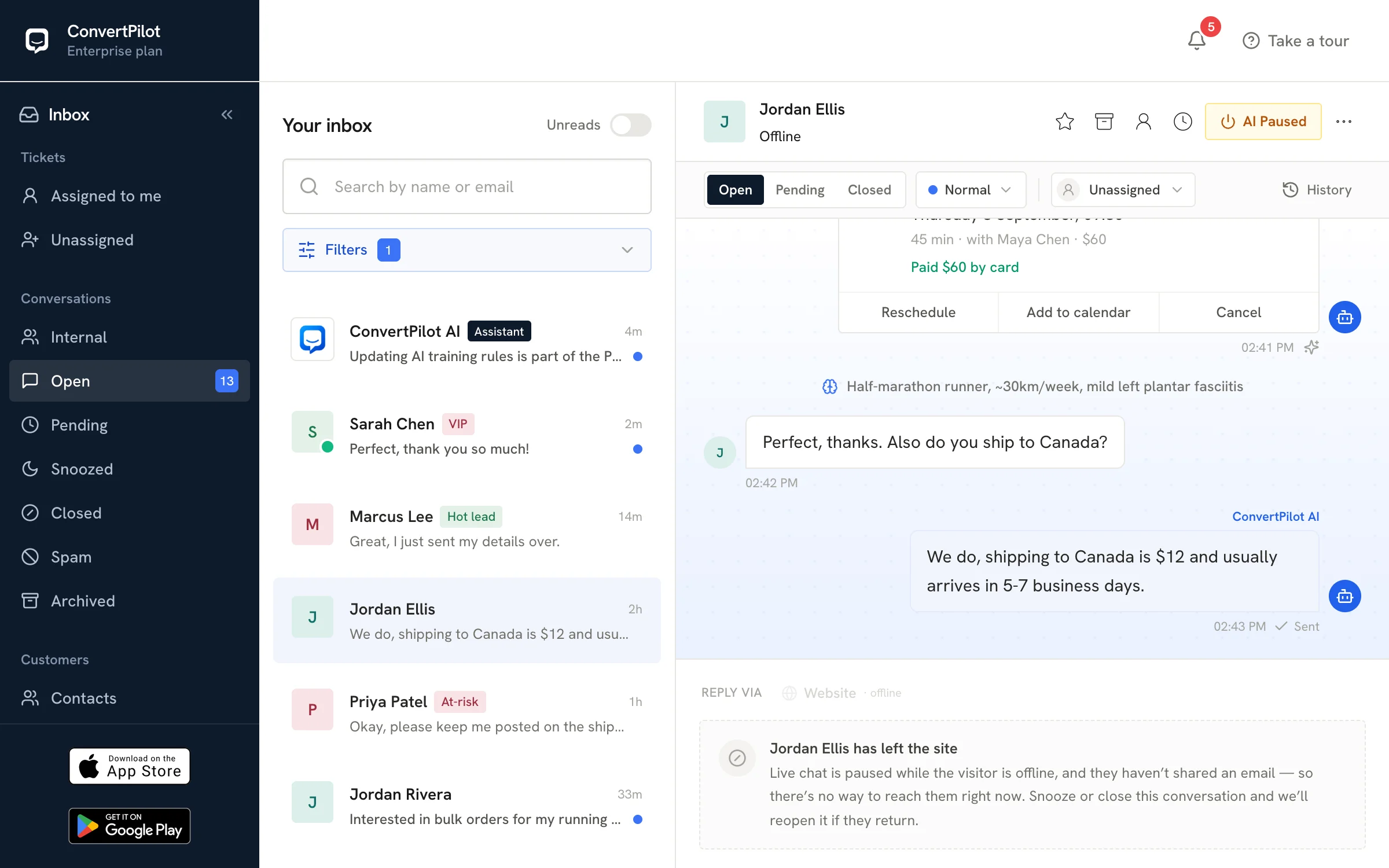 Live demoTry the consoleThe real ConvertPilot console with sample conversations, open in your browser. No sign-up.Open the live demo
From the blog
Compare
Turn a visitor’s question into a useful conversation. ConvertPilot answers from your website content, collects contact details and brings your team into the chat when a customer needs a person. Add the widget to WordPress with the installation script from your workspace.
Website chat and email on Free. Compare plans.
From browsing to a conversation
Give visitors useful answers about your services, policies and common questions. Add instructions for answers that need your particular wording.
Collect a visitor’s contact details in the chat so your team can follow up with someone who is considering a purchase or booking.
Read the conversation in the shared inbox, take over and reply with the context already in front of you. The mobile apps let your team respond away from a desk.
Choose the widget colours and greeting in ConvertPilot. Keep the same chat experience across your WordPress pages.
WordPress setup
Add your business details and website. Set your opening hours, preferred tone and the instructions the AI should use when answering customers.
Open Settings → Installation in ConvertPilot. Copy the complete widget snippet for your workspace, including its instance ID.
Paste the snippet once into your site-wide header or footer using your existing custom-code tool or a script-insertion plugin. Enable it on the public pages where you want chat. Your WordPress account and hosting plan need to allow JavaScript.
Open a published page as a visitor, ask a question covered by your website and check the reply in the ConvertPilot inbox. Test contact capture and a request for a person before inviting your team.
Copy your own workspace snippet from Settings → Installation. Keep the script’s instance ID intact.
See the installation snippetOne place for your team
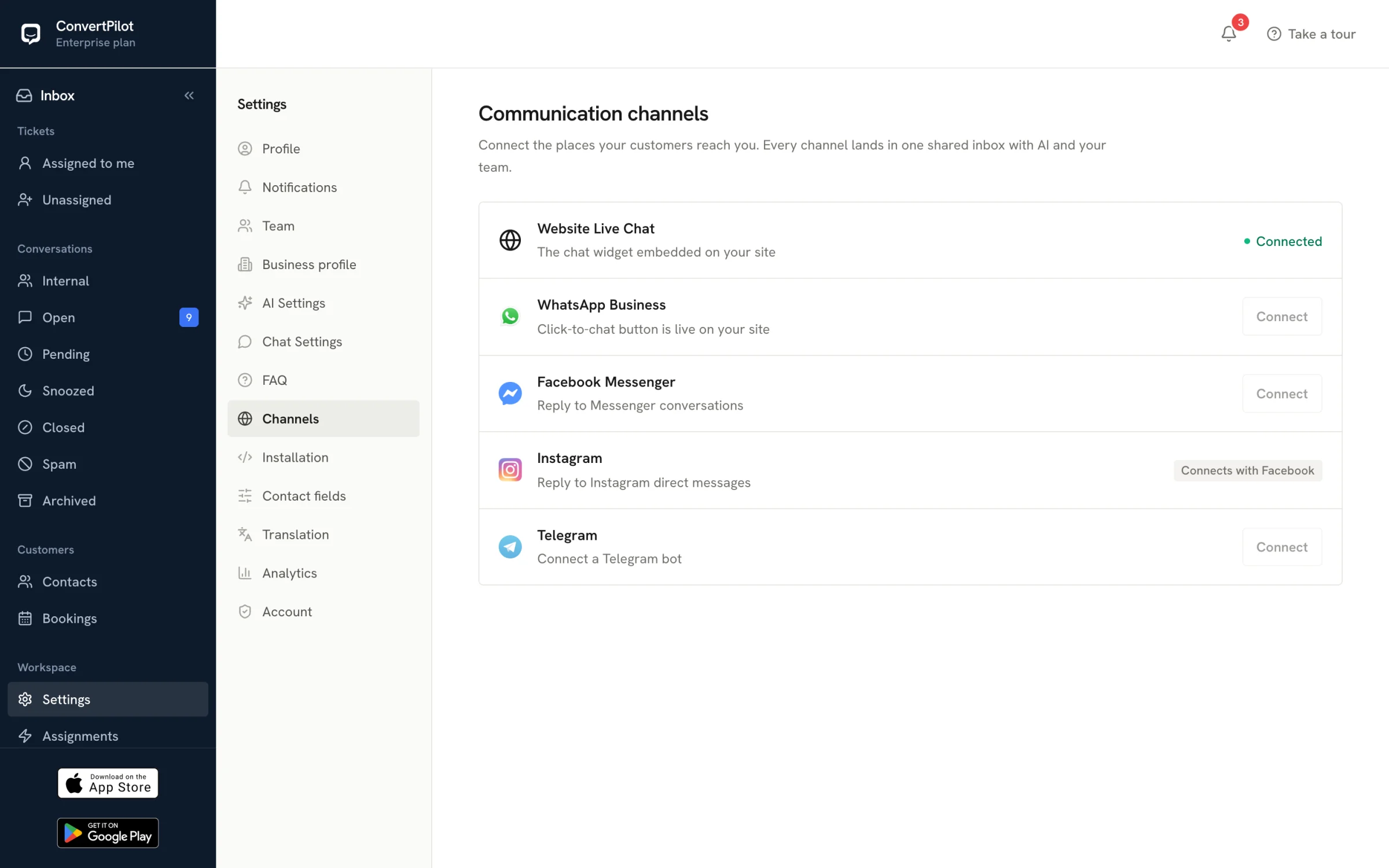
A visitor asks about your services. ConvertPilot answers from your content. When they need your team, the conversation is ready in the shared inbox. Add WhatsApp and Instagram on Premium as your customer channels grow.
Before you install
Create a ConvertPilot workspace, configure your business and copy the widget snippet from Settings → Installation. Add it once to your WordPress site’s global custom-code area or script-insertion plugin, publish and test a chat on a public page.
Keep exploring
The pages that follow on from this one.
Start with a free workspace, add your script and test the questions your customers ask most.
Your business. Your voice. One connected inbox.